YoutubeTools
All guides / Thumbnail design and channel art
YouTube thumbnail size
Set a widescreen thumbnail canvas to 16:9.

Start with the shape and then choose the pixels
For a landscape video thumbnail, 1280 × 720 and 1920 × 1080 are both examples of a 16:9 canvas. The ratio stays the same as the pixel count changes. Check current YouTube Help for its upload recommendations and file-size limits. An available download variant is not an upload specification.
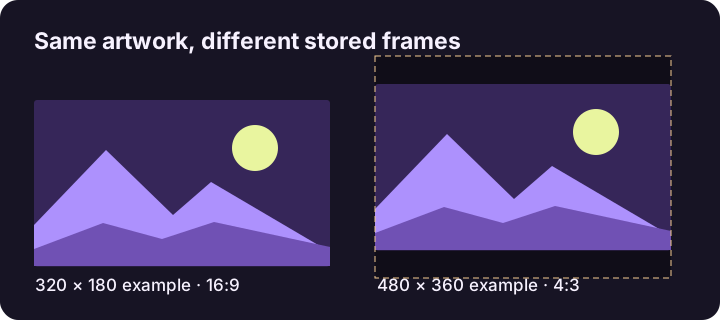
Diagnose the common 4:3 surprise
A 640 × 480 image is 4:3. If its artwork is 16:9, the stored image may contain black padding. Open it at its natural size to tell whether bars are in the file or added by your viewer. Stretching it to a wide canvas distorts the artwork. Use a source without padding when available, or crop an editable copy without cutting off the subject.
Keep a master and a delivery copy
Build the design at the intended ratio and save an editable master. Export a separate JPEG, check its actual dimensions and file size, then compare its text at phone-card size. If an image is too large for your upload, adjust the quality or simplify heavy texture and export again from the master.
Walk through one resize
Start with 1920 × 1080 and target 1280 pixels wide. The proportional height is 720, so the subject will not stretch. If your source is portrait, a centered landscape crop can remove important edges. Reframe in an editor first and check it in the Thumbnail Previewer before saving the delivery copy.
Related tool
Crop a local image to the dimensions you enter and export it as a JPEG.